MATLAB Installation & System Requirements

MATLAB Installation & System Requirements
What is MATLAB Installation?
MATLAB installation is the process of downloading and setting up MATLAB software on your computer so you can perform mathematical calculations, programming, simulation, and data analysis.
MATLAB is developed and distributed by MathWorks.
System Requirements for MATLAB
Minimum System Requirements
(For learning, students, and beginners)
Operating System
Windows 10 / 11 (64-bit)
macOS (64-bit)
Linux (64-bit)
Processor (CPU)
Intel or AMD 64-bit processor
Minimum: Dual-core processor
RAM
Minimum: 4 GB
Recommended: 8 GB or more
Hard Disk Space
Minimum: 5–6 GB free space
Recommended: 10 GB+ (for toolboxes)
Display
Minimum resolution: 1366 × 768
Recommended: Full HD (1920 × 1080)
Recommended System Requirements
(For smooth performance & advanced projects)
8–16 GB RAM
SSD storage
Multi-core processor
Dedicated GPU (optional – useful for simulations & ML)
Steps to Install MATLAB (Windows Example)
Step_1: Download MATLAB
Visit the official MathWorks website
Sign in with your account (student / trial / licensed)
Step_2: Run Installer
Double-click the downloaded installer file
Choose Install using Internet
Step_3: Sign In
Enter your MathWorks account email & password
Step_4: Select License
Student License
Trial Version
Commercial License
Step_5: Choose Installation Folder
Default location is recommended
Step_6: Select Products
MATLAB (mandatory)
Toolboxes (optional – choose based on need)
Step 7: Install & Finish
Wait for installation to complete
Click Finish
After Installation
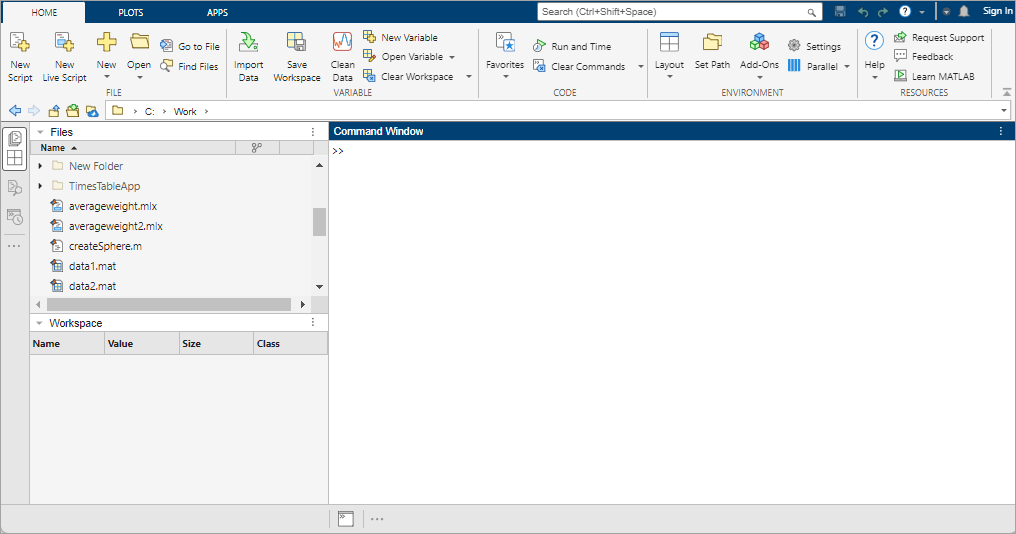
Open MATLAB
You will see:
Command Window
Editor
Workspace
Command History
MATLAB is now ready to use 🎉
Common Installation Issues
Low disk space
Unsupported 32-bit OS
Slow internet during installation
Antivirus blocking installer
Tips for Students
Use Student Version if available
Install only required toolboxes
Use SSD for faster performance