PostgreSQL pgAdmin 4

PostgreSQL pgAdmin 4 – Complete Guide
pgAdmin 4 is the official graphical user interface (GUI) tool for managing PostgreSQL databases.
It allows you to create databases, run SQL queries, manage tables, users, and view data without typing everything in the command line.
What is pgAdmin 4?
pgAdmin 4 is:
A web-based GUI tool
Used to administer PostgreSQL
Beginner-friendly alternative to
psqlInstalled along with PostgreSQL (by default)
Think of pgAdmin as MySQL Workbench for PostgreSQL.
Why Use pgAdmin 4?
- Easy-to-use graphical interface
- Run SQL queries visually
- Manage databases, tables, views
- View & edit table data
- Suitable for beginners & professionals
pgAdmin 4 vs psql
| Feature | pgAdmin 4 | psql |
|---|---|---|
| Interface | GUI | Command-line |
| Ease of use | Very easy | Medium |
| Best for | Beginners, admins | Developers, scripting |
| Visualization | Yes | No |
Opening pgAdmin 4
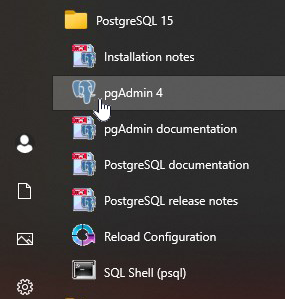
After installing PostgreSQL:
Windows → Start Menu → pgAdmin 4
macOS/Linux → Applications → pgAdmin 4
First time:
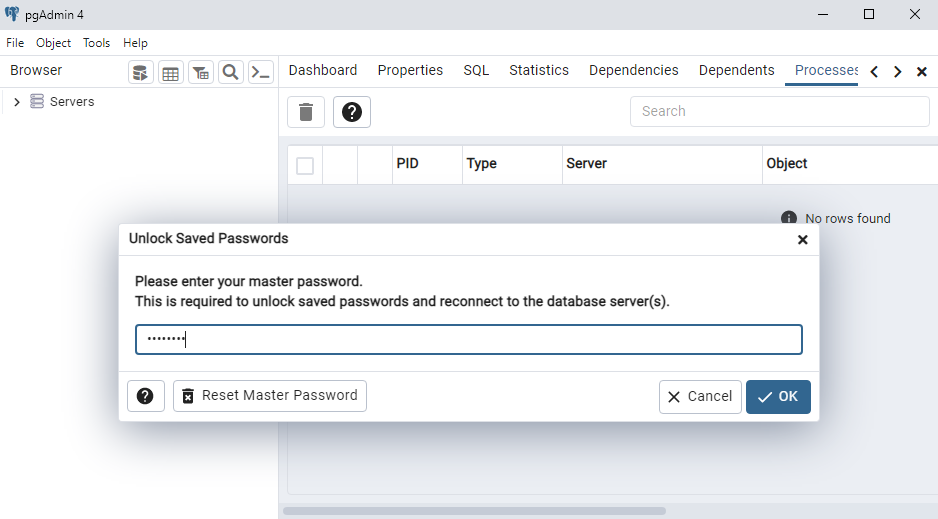
Set master password
Used to store DB credentials securely
Connect to PostgreSQL Server
Steps:
Open pgAdmin 4
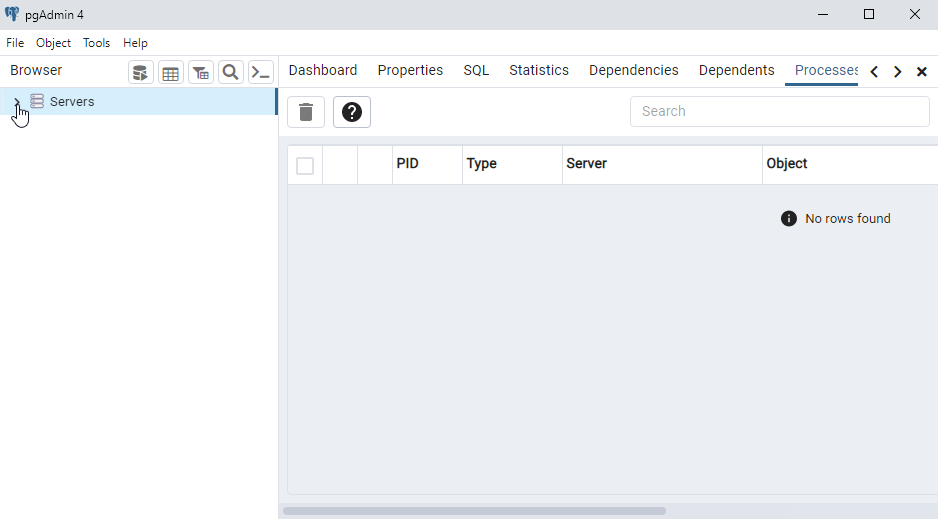
Right-click Servers
Click Register → Server
Fill details:
General Tab
Name:
Local PostgreSQL
Connection Tab
Host:
localhostPort:
5432Username:
postgresPassword: (your DB password)
Click Save
pgAdmin 4 Interface Overview
Left Panel (Browser Tree)
Servers
Databases
Schemas
Tables
Views
Functions
Right Panel
Dashboard
Properties
SQL
Statistics
Create a Database in pgAdmin 4
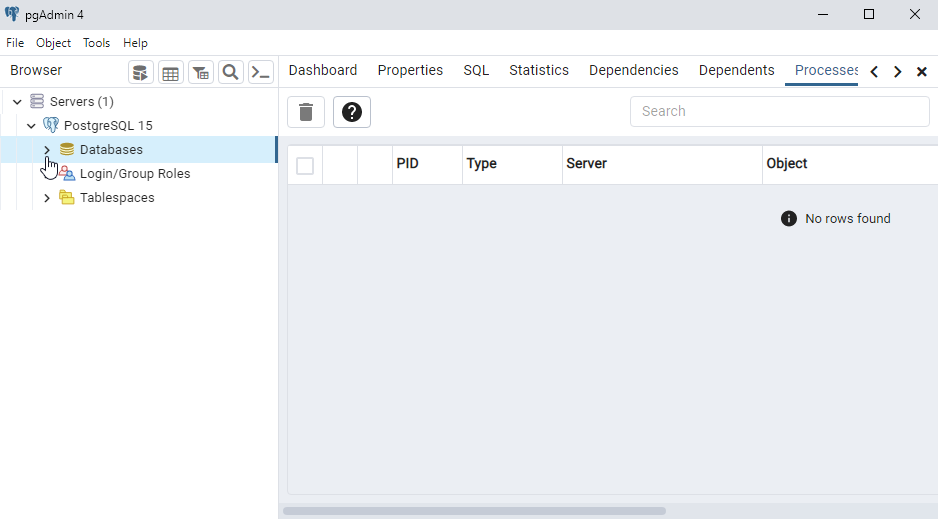
Expand Servers → Databases
Right-click → Create → Database
Enter:
Database name
Owner
Click Save
Create Table Using Query Tool
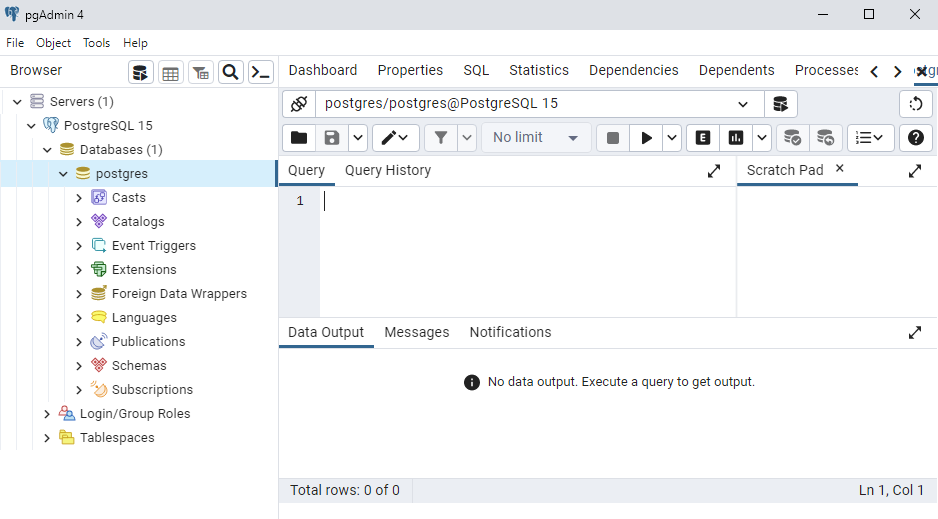
Select Database
Click Query Tool
Write SQL:
Click ▶ Execute
Insert & View Data
To view data:
Right-click table → View/Edit Data → All Rows
Query Tool in pgAdmin 4
The Query Tool lets you:
Run
SELECT,INSERT,UPDATE,DELETESee query execution time
Export results as CSV/Excel
Very important for practice & interviews
Common pgAdmin 4 Errors
- Wrong password
- PostgreSQL service not running
- Wrong port (not 5432)
- Firewall blocking connection
Fix: Check PostgreSQL service & credentials.
Interview / Exam Questions
Q1. What is pgAdmin 4?
GUI administration tool for PostgreSQL
Q2. Default PostgreSQL port?
5432
Q3. Is pgAdmin 4 mandatory?
No, but highly recommended
Q4. Which tool is faster for scripting?psql
Real-Life Use Cases
- Database administration
- Learning PostgreSQL
- Writing & testing SQL queries
- Managing tables & users
- Data analysis & reporting
Summary
pgAdmin 4 is the official PostgreSQL GUI
Makes database management easy
Best for beginners
Includes powerful Query Tool
Complements
psqlImportant for PostgreSQL learning & interviews